Home

Download

Buy Now

Tutorials

Contact US

How to use PowerISO as ISO Creator?

You are here:  Tutorials > How to use PowerISO as ISO Creator?


There are three ways to launch the power iso creator, using the main program, using the shell context menu, or using the drag-and drop. With PowerISO, You can create an iso file with a single click!

Usage1: Create ISO file using the main program:

  • Run PowerISO.

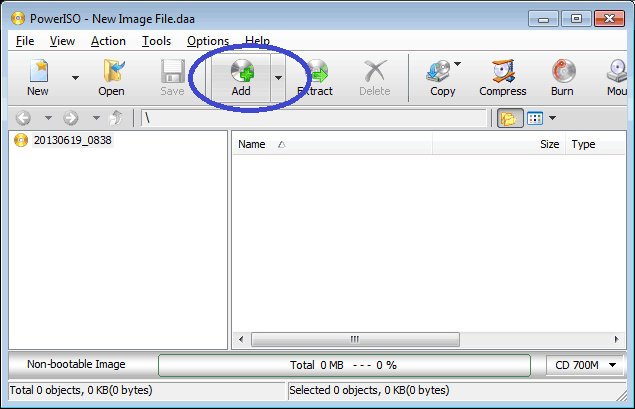
  • Click on the "Add" button on toolbar to add files and folders. You can also directly drag files and folders from Windows Explorer to the file view.

  • Choose the menu "Action > New Folder" to create a new folder.

  • Choose the menu "Action > Change Label" to change the default label.

  • Choose the menu "File > Properties" to set the iso file properties.

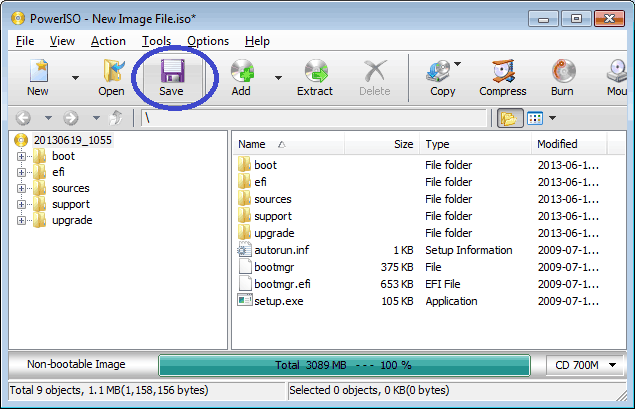
  • Click on the "Save" button on toolbar, or choose the "File > Save" menu to save the iso file.


Usage2: Create ISO file using the shell context menu:

  • Open "My Computer" and select the files which you want to add to iso file.

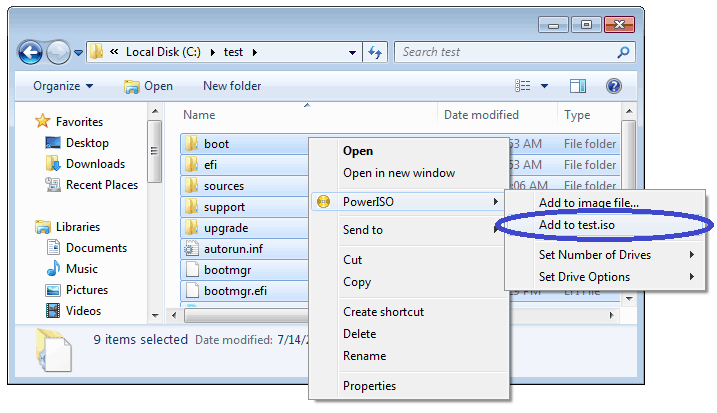
  • Right-click on the files selected, the shell context menu will popup.

  • Choose the menu "Add to xxxxx.iso".

  • PowerISO main program will start to run. It will automatically add all files and folders selected to the current compilation, then save the iso file with the specified name.

(Notes: The default image type for saving is DAA, you can change it to ISO format in PowerISO configuration dialog.)

Usage3: Create ISO file using the drag and drop:

  • Run PowerISO.

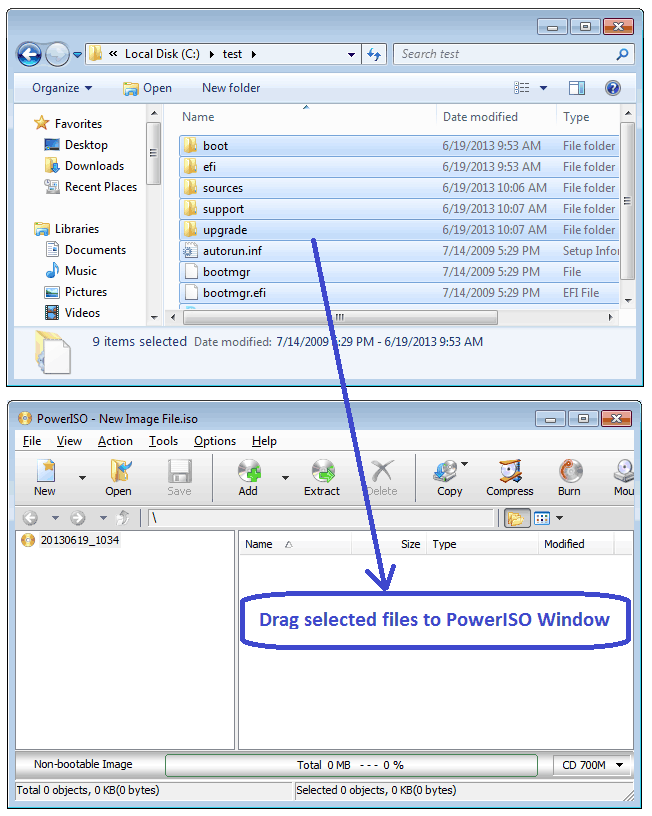
  • Open "My Computer" and select the files which you want to add to iso file.

  • Drag all files and folders selected to the PowerISO window.

  • Click the "Save" button to save the iso file..


Copyright 2004-2011 Power Software Ltd. All rights reserved.